
Tutorial
How to Segment an Image Online: Use Cases & Step-by-Step Guide
Follow this tutorial to segment a photo online, lock Default / 4:5 / 3:4 / 1:1 ratios, drag the crop box, and export 3, 6, 9+ slices without installing software.
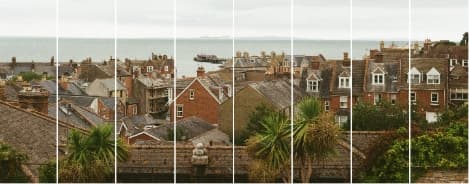
Why learn how to segment an image online?
Segmenting an image online helps bloggers, educators, and designers control load speed, sync storytelling, and prepare print-ready files without opening heavy desktop apps. Lock a ratio, drag a crop box, and the tool generates equal slices automatically.
Below you'll find the most common reasons to segment an image online plus four practical ratio workflows inside AI Image Splitter. Everything runs locally in your browser. When you're ready, open AI Image Splitter and start segmenting an image online in minutes.
Typical scenarios for segmenting an image online
Web & blog galleries
Segment a large hero into smaller slices so each tile loads progressively on long-form articles.
Product walkthroughs
Segment posters or diagrams into multiple slides for PDF handouts, PPT decks, or multi-screen demos.
A4 printing & collage
Segment a single poster into A4 sheets that can be printed, trimmed, and assembled offline.
Long story or scroll experience
Segment tall artwork into equal sections for blogs, comics, or scroll-style stories.
Tutorial: how to segment an image online with four ratios
Default ratio
Segment images online in the Default ratio for blog galleries
Keep the original aspect ratio when you simply need lighter slices for blogs or documentation.
- Upload your image and keep the ratio on Default.
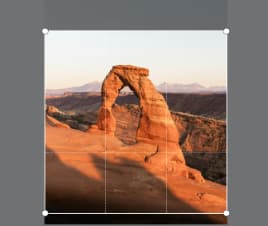
- Choose the grid (for example 2x3) and drag the crop box until the framing feels right.
- Click Split Image to segment the file online and download each slice (single files or a ZIP).
4:5 ratio
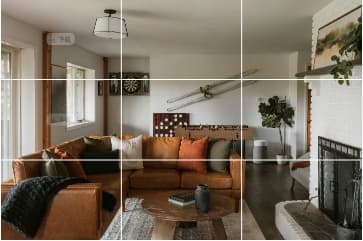
Segment vertical stories online with the 4:5 ratio
Lock the canvas to 4:5 for scroll experiences, tall posters, or any vertical storyboard.
- Upload the artwork and choose the 4:5 ratio.
- Set a grid like 1x3 or 1x4 depending on how many stacked slices you need.
- Preview and export. If you require Instagram feed-specific layouts, visit igridmaker.com.
3:4 ratio
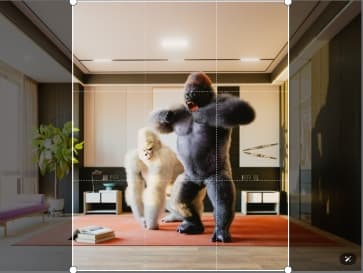
Segment balanced walkthroughs with the 3:4 ratio
3:4 works well for PDF or PPT slides where you need evenly balanced frames.
- Upload the poster and select the 3:4 ratio.
- Pick a grid (such as 2x2) that matches the number of slides you want to showcase.
- Split the image online and drop each slice into your deck or document.
1:1 ratio
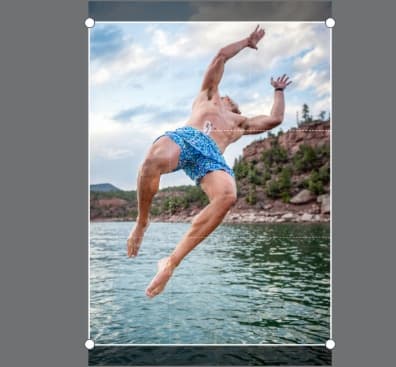
Segment square slices online for collages and Bento layouts
Use 1:1 when you want perfectly even squares for collages, Bento grids, or printable tiles.
- Upload the original image and pick the 1:1 ratio.
- Set a grid such as 3x3 or 4x4, drag the crop box, and preview.
- Download the squares for collages, Bento layouts, or A4 tile printing. For Instagram-specific puzzles, head to igridmaker.com.
Why use AI Image Splitter to segment images online
Ratio presets & drag-to-adjust
Switch between Default, 4:5, 3:4, and 1:1 instantly while the guided crop keeps subjects centered as you segment.
Flexible grid combinations
Set any rows and columns (from 1x1 up to 10x10+, limited only by resolution) to match the number of slices you plan to segment.
Preview & batch export
Preview every slice before exporting JPG, PNG, WebP, or BMP, then download single files or a ZIP batch.
Privacy-friendly & free
The entire segmentation process happens in your browser, so nothing is uploaded. It's free, private, and watermark-free.
FAQ about segmenting an image online
Do I need to install software to segment an image online?
No. Upload in the browser, pick a ratio and grid, click Split Image, and download the slices. It's 100% online and free.
Is there a limit to how many slices I can segment online?
You can create as many slices as your image resolution allows. Adjust the row/column combination to match your use case.
Will online segmentation reduce image quality?
No. The locked crop box only controls the framing, so exported slices keep the original resolution and stay print-ready.
Which formats can I export after segmenting images online?
JPG, PNG, WebP, and BMP are supported. Download individual files or a ZIP bundle when you finish segmenting.
Where can I build Instagram feed-specific grids?
Use this tutorial for general segmentation. For Instagram feed puzzles or grid layouts, visit our sister site igridmaker.com.
Ready to segment an image online?
Upload a photo, lock Default / 4:5 / 3:4 / 1:1 ratios, set your grid, and export 3/6/9+ slices in under a minute with no signup, no downloads, no watermark. Ready to try the workflow? Open AI Image Splitter and apply these steps instantly.
Open AI Image Splitter